
Introduction – Leonardo AI Phoenix
Welcome: This is the full pillar guide to Leonardo AI Phoenix in 2025. Read start-to-finish or jump to the section you need. This rewrite uses clear NLP-oriented terminology so you can reason about Phoenix like an ML practitioner, production designer, or engineer.
Quick summary:
Phoenix is Leonardo.ai’s production-grade text-to-image foundation model focused on prompt adherence, coherent on-image text rendering, predictable stylistic output, and high-resolution deliverables. It’s designed for designers, agencies, e-commerce, and studios that require reproducible image generations at scale.
What is Leonardo AI Phoenix?
In systems and ML terminology, Leonardo AI Phoenix is a diffusion-based generative image model (a production conditional generator) optimized for high fidelity to text prompts and for downstream asset production. Practically, Phoenix maps tokenized text conditioning vectors to high-dimensional image latent representations, then decodes to RGB space with integrated upscaling and post-denoising modules. The result: predictable renders that preserve layout, readable text baked into images, and outputs that scale to print-ready megapixel counts..
Key features
Below are the core capabilities, explained using modeling and pipeline terms so you can reason about tradeoffs.
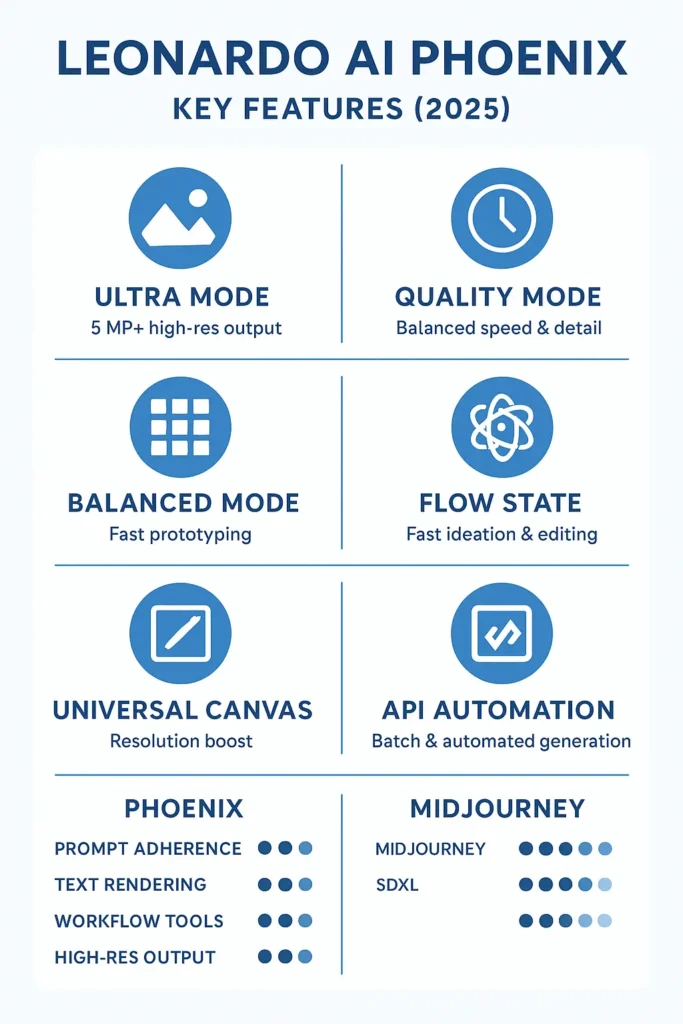
- Ultra Mode (high-resolution decoding) — A late-stage decoder/upscaler pathway that produces ~5MP+ outputs suitable for print and large hero banners. Viewed as a higher-capacity decoding step or a dedicated super-resolution head that refines fine detail and text edges.
- High prompt adherence (strong conditioning) — The conditioning network and cross-attention layers prioritize user tokens, giving Phoenix a high effective prompt-to-image signal-to-noise ratio. For practitioners: this means fewer prompt-engineering hacks to force specific attributes.
- Coherent on-image text rendering — Phoenix integrates mechanisms (learned glyph priors and sharper high-frequency preservation in the decoder) that produce legible, consistent text when prompted—useful for packaging, UI, and mockups.
- Universal Upscaler — A post-generation super-resolution stage with denoising and artifact suppression that preserves the generator’s intended style while increasing pixel resolution.
- Iterative editing tools (Flow State, Real-Time Canvas) — In-app interfaces that implement image-conditioned inpainting and localized denoising passes for rapid ideation and targeted edits.
- API and batch automation support — Production endpoints permit parallel generation, seed control, and mode toggles (Balanced/Quality/Ultra) to manage latency vs. fidelity tradeoffs.
Phoenix generation modes — pick the right one
Phoenix exposes three primary inference modes. Think of them as decoder presets that alter sampling steps, classifier-free guidance scales, and upscaling policy.
| Mode | Best for | Speed | Detail |
| Ultra Mode | Final renders: packaging, print, hero images | Slower (more sampling & upscaling) | Max detail, cleaner typography |
| Quality Mode | Concept art, stylized visuals, web-ready renders | Medium | Good balance of speed + fidelity |
| Balanced Mode | Fast prototyping, many variations | Fast (fewer sampling steps) | Lower detail, good for exploration |
Workflow tip: iterate Balanced → Quality → Ultra. Use Balanced for a broad search in the latent manifold, then upgrade selected latents to Quality, and finalize the chosen images with Ultra.
Phoenix vs competitors — short comparison
From a system perspective:
- Prompt adherence: Phoenix emphasizes strict conditioning; Midjourney tends to trade some adherence for idiosyncratic creativity. SDXL (or other large diffusion variants) can match fidelity but often requires more advanced prompt engineering and post-processing.
- Text rendering: Phoenix has a higher probability of producing readable, well-formed glyphs inside images compared to many competitors.
- Workflow tooling: Built-in ideation and edit tools in Leonardo’s platform (Flow State, Canvas, Upscaler) give Phoenix an operational edge for production teams who want an end-to-end pipeline.
How Phoenix works — a compact
Model class: Diffusion model (denoising generative model), informed by DDPM-style training and later sampling improvements.
Conditioning: Text prompt tokens are embedded via a transformer encoder; cross-attention maps text embeddings to intermediate image latents. The attention layers have been tuned to provide higher effective guidance for tokens describing layout, text, and brand constraints.
Sampling: Phoenix uses stepwise denoising (stochastic or deterministic samplers). Guidance (classifier-free) scales are tuned per mode: Balanced uses smaller guidance for diversity, Quality increases it, and Ultra applies a heavier guidance plus additional refinement passes.
Upscaling pipeline: After base sampling, a dedicated super-resolution module (the Universal Upscaler) applies learned upscaling with artifact-aware denoising, preserving edges and glyph shapes important for legibility.
Inpainting and local edits: The Real-Time Canvas uses masked conditioning: an image region is encoded to latents, and a localized inpainting pass performs conditional generation to replace or refine content while keeping global consistency.
Practical consequence: Phoenix behaves like a conditional sequence model where prompts are the conditioning sequence and the generated image is the output sequence (interpreting pixels as a continuous sequence). The engineering optimizations give stronger alignment between prompt tokens and image features.
Best practices for prompting Phoenix
Treat prompts as structured conditioning statements. Use a formula:
[Subject] + [Style] + [Camera/Lens] + [Lighting] + [Composition] + [Details] + [Negative Prompts]
Example:
A cinematic portrait of a female astronaut, 50mm lens, soft rim light, hyperrealistic textures, dramatic contrast, black studio background.
Technical tips:
- Use seeds for reproducibility. Sampling is stochastic, but seed control fixes the PRNG so you can reproduce base outputs and iterate deterministically on refinements.
- Prefer short, uppercase text on-image. When asking Phoenix to render text (logos, labels), request shorter strings and prefer uppercase to improve glyph clarity. For brand-exact text, create the text externally and use an image overlay workflow.
- Negative prompts act as constraints: e.g., no watermark, no extra limbs, no distorted text, no artifacts. These operate as inhibitory signals during sampling (and act like constrained tokens).
- Guidance scale balancing. Higher guidance reduces diversity and increases adherence; use higher values for Ultra mode, moderate for Quality, and lower for Balanced.
- Iterative refinement. Start with Balanced for variety, select promising images, then refine the chosen latents with Quality or Ultra and targeted inpainting for micro edits.
Real-Time Canvas Workflow
- Start with a rough sketch in Canvas (or upload a reference image).
- Use the Canvas Edit / inpaint feature to convert sketch regions into detailed renders, leaving constraints where needed.
- Iterate locally: adjust mask, re-run localized passes, and keep global composition intact.
- Finalize in Ultra for high-resolution export.
This workflow treats the inpainting pass as a conditional refinement operator—it changes a masked region while preserving encoded global latents.
Flow State Multi-Variant Workflow
- Single well-crafted prompt → Flow State generates N variations (typically 12–32).
- Curate 9–16 favorites using selection metrics (visual inspection, brand constraints).
- Refine the top 3 in Quality mode.
- Finalize one in Ultra + Universal Upscaler.
This is an exploration→exploitation pipeline: wide sampling followed by focused optimization.
Universal Upscaler Workflow
- Generate a candidate at Quality or Balanced.
- Apply Universal Upscaler to selected images to reach Ultra-class resolution.
- Do micro-retouching (inpaint) if fine details or text need correction.
- Deliver final assets.
Troubleshooting common issues
When outputs don’t match expectations, use these diagnostics.
1. Face glitches/anatomy errors
- Cause: sampling artifacts, insufficient guidance, and ambiguous prompts.
- Fix: targeted negative prompts (no warped eyes, no extra teeth), increase guidance, change seed, or inpaint the face region with reference.
2. Blurry or unreadable text
- Cause: text is long, low-res decoding, or weak glyph priors.
- Fix: shorten on-image strings, use uppercase, use Ultra Mode, or overlay vector text in post for brand-critical content.
3. Over-saturated colors
- Cause: style tokens favor vivid palettes.
- Fix: include color tokens (muted palette, natural tones), test in Quality first, then Ultra.
4. Extra limbs / strange anatomy
- Cause: model hallucination under creative prompts.
- Fix: negative prompts (no extra limbs), clearer subject descriptions, constrained poses.
5. Artifacts at upscaling
- Cause: naive upscaling without artifact suppression.
- Fix: use Universal Upscaler rather than simple interpolation, then run micro inpaint.
Pricing & plan suggestions
Exact rates change; check Leonardo.ai for current pricing. Use this planning guidance:
| Plan | Best for | Monthly usage estimate |
| Free | Learning, experimentation | < 50 images |
| Premium | Freelancers, designers | 50–500 images/week |
| Studio / Team | Agencies, automation | 1,000+ images/week (API & Ultra usage) |
Recommendation: If you require 50–500 weekly images with many Ultra outputs, choose Premium or Business. For heavy automation and multi-seat collaboration, move to Studio/Team.
Pros & Cons
Pros
- Strong adherence to prompts (deterministic conditioning).
- Ultra Mode for print-grade outputs.
- Better on-image text rendering than many peers.
- Rich tooling (Flow State, Canvas, Upscaler).
- Production-ready API & batch options.
Cons
- Ultra Mode consumes more compute/credits.
- Some tricky details (faces, logos) may still need manual retouch.
- Balanced Mode sacrifices detail for speed—tradeoffs to manage.
FAQs
A: Photoreal graphics, packaging, UI assets, characters, and marketing visuals. It’s meant for production and brand work.
A: Yes. Ultra Mode and Phoenix outputs reach about 5 megapixels at top quality (use Ultra Mode or the Universal Upscaler).
A: For workflow control, reproducibility, and on-image text, Phoenix is often a better fit. Midjourney is often more stylized and creative. Use the tool that fits your project needs.
A: Yes — Phoenix performs well on text inside images. Use Ultra, short text, and structured prompts for best results.
A: Yes — Leonardo.ai provides API recipes and endpoints designed for automation and bulk generation. See the API docs for code examples and limits.
Conclusion
Phoenix is engineered for teams who need predictable, high-quality images at scale. Use the exploration pipeline Balanced → Quality → Ultra, leverage Flow State for ideation, and apply the Universal Upscaler for print-grade assets. If you’re building automated pipelines, integrate Phoenix via the official API and use seed control and batch generation to ensure reproducibility.
