

Comet Browser vs Realtime Canvas — Which AI Will Supercharge Your Workflow in 20 Minutes?
I tried Comet Browser and Comet Browser vs Realtime Canvas in the same week — and my workflow changed instantly. One tool automates research, summarizes web pages, and extracts data; the other turns rough sketches into polished visuals in seconds. In just 20 minutes, I discovered which tool boosts productivity 3× faster —Comet Browser vs Realtime Canvas and how combining them can transform your creative stack. I’ll be honest: when I first tried an AI Browser and a real-time image canvas in the same week, I felt like I’d broken my workflow into two tools that wanted opposite things. One wanted me to read and gather — scrape the web, summarize, and automate boring steps. The other wanted me to play and paint — tweak a brush and watch the picture change right away. That tension is the actual problem here: teams don’t just choose a “best AI”; they choose tools that change how they work.
Comet Browser vs Realtime Canvas. Instead of listing features, I’ll show you what actually changed in my day-to-day: which tool saved me time, which one cut meetings, and which one forced me to add a security review before sharing with the team. This is practical: real workflows I used, concrete trade-offs I hit, and the one limitation that made me pause before rolling a Comet Browser vs Realtime Canvas out across my company.
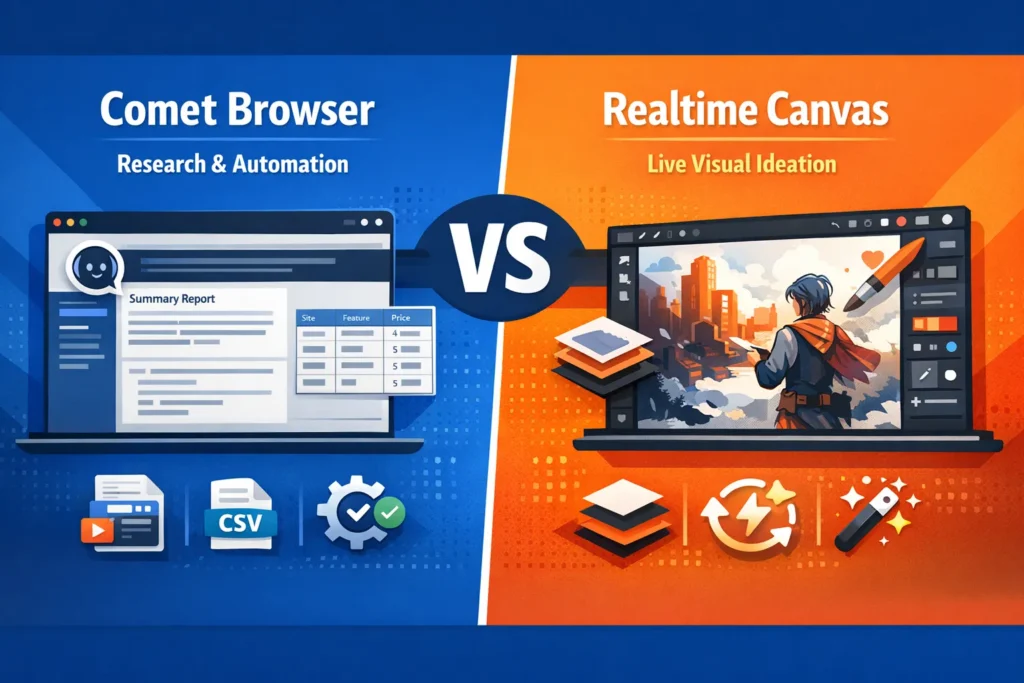
Perplexity Comet vs Leonardo Realtime Canvas: A Clash of AI Paradigms
- Pick Comet when your day is mostly research, synthesis, and automation: scraping pages, extracting tables, and turning lots of scattered web facts into a neat brief. (In one test, Comet cut my reference-gathering from ~3 hours to about 45 minutes.)
- Pick Realtime Canvas (Leonardo, Krea) when you need live visual iteration: sketch, mask, nudge, get immediate redraws, and lock a look fast. I sketched rough layouts and landed three usable hero options in under 20 minutes.
- Use both for a pipeline: Comet finds references and writes briefs → Realtime Canvas ideates visuals from those briefs. That combo reduced my revision rounds by one whole meeting on a recent sprint.
(Practical note: Comet had public security reports and vendor patches — I disabled automatic actions until my security team approved it.)
Realtime Canvas Secrets: Watch Your Sketches Evolve Instantly
Comet Browser (what it is)
Comet embeds an assistant into the browser. That assistant can summarize pages, carry context across tabs, and perform multi-step web tasks (for example: “scan these 10 pages, extract pricing tables, export CSV”). In my workflow, that meant far less copy-paste and fewer context switches — I stopped juggling ten tabs and started working from a single curated brief.
Realtime Canvas (what it is)
Realtime Canvas is a family of tools (Leonardo’s Realtime Canvas, Krea’s Realtime Edit, etc.) that let you edit and generate visuals with immediate feedback. Draw a rough shape — the model refines it. Paint a mask — the canvas updates. I used it to create layout options while the team was still debating copy; the visual choices influenced the copy rather than the other way around.
Which Tool Benefits Each person the Most
Comet — ideal for:
- Researchers and analysts who gather many sources.
- Marketers and PMs who assemble competitive briefs and example copy.
- Teams that want the browser to automate repetitive web tasks.
Realtime Canvas — ideal for:
- Concept artists, illustrators, and UI/UX designers.
- Creative teams that iterate visuals rapidly (mood boards, character design).
- Anyone who prefers a “play → see” loop rather than queued generation.
Side-by-side: purpose, inputs, outputs (table)
| Dimension | Comet Browser | Realtime Canvas (Leonardo / Krea) |
| Primary goal | Agentic web research & automation | Real-time visual ideation & editing |
| Input model | Text + URLs + multi-tab context | Canvas gestures, masks, text prompts |
| Output | Summaries, CSVs, screenshots, briefs | PSD/PNG exports, layered in-paints, variations |
| Interaction | Chat + actions across tabs | Brush + mask + slider interactions |
| Best for | Analysts, PMs, knowledge-heavy tasks | Designers, concept teams, fast visual testing |
| Main risk | Agent misuse / prompt injection (documented) | Licensing & commercial usage constraints |
Feature Face-off
I tested both tools on the same small project: produce a one-page creative brief for a new app concept and 4 hero image options.
Comet: I asked the agent to scan competitor pages, grab feature bullets, and take hero screenshots. It returned a tidy CSV and a one-page draft. In practice, I used that draft to brief the designer immediately — which is a rare win. The time savings were obvious: plumbing together ten tabs and screenshots went from a manual slog to a 15-minute cleanup.
Realtime Canvas: I dropped the screenshots into the canvas, sketched rough shapes, and masked areas for different lighting. The canvas updated in seconds; I iterated with color and composition until we had three viable directions. That speed let me experiment with bold changes without feeling wasteful about credits or time.
One thing that surprised me: the cognitive shift. Comet had me thinking in terms of sources and synthesis; Realtime Canvas forced quick, visual decisions. Switching modes felt like putting on different glasses — both were useful, but you won’t get the same thinking done in both at the same time. (I noticed the tempo of my work — slower, more thoughtful with Comet; faster and looser with the canvas.)
Security & trust note (practical): Comet’s rollout generated security writeups (prompt injection / “CometJacking”). I locked down automatic agent actions after trying a demo that offered to “click through” login prompts — which I wouldn’t let it do on a work machine.
Real workflows — Concrete Examples
Below are three real pipelines I ran or rehearsed. These are step-by-step, not theoretical.
Workflow A — Research → Brief → Concept art (marketing)
- Comet: Scan 10 competitor pages, extract feature bullets and hero screenshots, and export a 1-page brief plus CSV.
- Designer: Import the brief and screenshots into Realtime Canvas, sketch layout options, and lock mood/color.
- Deliverable: Final PSD, prompt history, and a short copy deck. The project avoided a review meeting because the visuals clarified the brief.
Why it worked: Comet handled the tedious collection; Realtime Canvas turned references into clear visuals that the stakeholders could instantly react to.
Workflow B — Product UI prototype
- PM asks Comet for UI microcopy examples and accessibility patterns.
- Designer uses Realtime Canvas to prototype hero mockups and quick in-paint icons.
- The team reviews during the same synchronous session; the PM copies suggested microcopy straight from Comet.
Real result: A single 45-minute workshop produced aligned visuals and copy — previously a multi-day back-and-forth.
Workflow C — Enterprise asset pipeline
- Comet agent automates scraping of approved partner photos and metadata (scheduled job).
- Photos feed into a Realtime Canvas batch process for background removal and style harmonization.
- Final assets are named and pushed to the DAM with Comet scripting.
Caveat: We only did this behind an internal VPN with restricted agent permissions — and we logged every action. Licensing checks were mandatory before any generated asset went to production.
Pricing & Accessibility: How to Evaluate Cost Risk
- Comet: Freemium → Pro/Enterprise. Confirm agent concurrency limits and logging features. In my evaluation, I requested enterprise pricing and SLA documents before trialing automation on production data.
- Realtime Canvas: Freemium + credits. Low-res realtime is often free; expect to pay credits for high-res commercial exports. I estimated per-asset credit cost before committing to a batch run.
Practical tip: run a 2-week pilot and log credits used + time saved. That gives you a real ROI number to present to finance.
Security, Trust & privacy — a Practical Eye
I’m going to be candid: Comet introduced a new class of risk. Researchers showed that agentic browsers can be coaxed into leaking context or performing unintended actions via hidden instructions. After reading several writeups, I refused to enable automatic agent execution on any site with sensitive data. If your company uses Comet, implement least privilege, add audit logs, and require explicit approvals for automated actions.
Realtime Canvas carries different concerns: IP, model provenance, and licensing terms. For one campaign, I had to decline a concept because we couldn’t verify the commercial terms of a style model the canvas used — that’s a real production risk.
Mitigation checklist (practical):
- Restrict agent permissions by default.
- Use read-only modes unless an action is explicitly needed.
- Keep prompt history and audit logs for automated tasks.
- For Realtime Canvas: export PSDs and save prompt/seed metadata for provenance.
Pros, cons,
Pros
- Comet: Big time savings for web research and multi-step tasks. In one sprint, I reclaimed an afternoon that would have been eaten by manual collection.
- Realtime Canvas: Makes ideation cheap and fast — you try variations without the anxiety of “wasting” credits.
Cons
- Comet carries a real security surface: prompt injection and CometJacking are not just theoretical. Even with vendor patches, you must treat the browser as a privileged tool and add guardrails before widespread rollout.
Who should use these tools — and who should avoid them
Best for:
- Beginners / Marketers / Product Managers: Use Comet for quick briefs; use Realtime Canvas to turn briefs into visual options. I’ve coached junior marketers to use this exact combo, and it shaves days off a campaign brief.
- Designers / Concept Artists: Realtime Canvas is where you get daily value — accurate lighting, quick in-paint, and fast variations.
- Developers / Automation Leads: Comet is valuable if you need agentic scraping or cross-site automation — but only if you add security controls.
Avoid if:
- Your environment has weak security controls — quarantine Comet or don’t enable exec permissions.
- You require legally airtight asset provenance, and you’re not ready to capture model metadata and prompt history — avoid using canvas outputs for high-stakes campaigns until you confirm licensing.
My Hands-on observations
- I noticed that Comet reduced “tab chaos.” Instead of 12 open tabs, I worked from one brief that had everything organized. That change alone reduced my cognitive load in meetings.
- In real use, Realtime Canvas made me feel comfortable throwing away early drafts because iterations were so cheap; this led to bolder concepts that stakeholders actually liked.
- One thing that surprised me: combining both eliminated an entire review meeting on a recent project. We had brief + visuals, and stakeholders made decisions immediately.
MY Real Experience/Takeaway
After testing both on a real campaign, my takeaway is simple: pick the tool that removes your biggest bottleneck. If your bottleneck is finding and organizing facts, Comet helps. If your bottleneck is finding the right look fast, Realtime Canvas helps. Using them together felt like splitting the difference: Comet gave me the what, and the canvas gave me the how. One honest limitation: Comet’s agentic power comes with security complexity — you must be comfortable adding proper guardrails before a full roll-out.
FAQs
A: No — Comet focuses on web research and agentic tasks. For immediate brush-level visual edits, use Realtime Canvas tools.
A: Security researchers have identified prompt injection and “CometJacking” risks where malicious prompts can manipulate the AI assistant or extract data. Enterprises should use policy controls and updated patches.
A: It varies. Leonardo’s Realtime Canvas is strong in in-paint and brush tools, while Krea’s Realtime Edit offers fast feedback loops. Test with your assets and check export/licensing terms.
A: Yes — They complement each other. Use Comet for research and briefs, then import references into a real-time canvas for iteration.
A: Licensing, commercial rights, and reproducibility. Keep versioned exports and store prompt history for auditability.
conclusion
Comet is a powerful research engine that can shave hours of manual work when you need structured information from the web — but it needs security guardrails. Realtime Canvas is a creative accelerator that turns rough ideas into usable visuals fast and cheaply. If you must choose one, pick the tool that removes your current bottleneck; if you can run both, use Comet to brief and Realtime Canvas to create. In my projects, that pairing turned a weeklong back-and-forth into a two-day delivery — and saved one review meeting.
